Floor and Ceiling Functions

While the ROUNDUP (round up to the nearest number, specifying the number of digits), ROUNDDOWN (round down to the nearest number, specifying the number of digits), and ROUND (round to nearest number up or down, specifying the number of digits) are very helpful, sometimes you wish to round up or down to a specific multiple.  Maybe you are dealing with large numbers and want to deal work only with multiples of 1,000 or 10,000.  Or maybe you’re building a graph or chart and want to minimize the scale.  The best way to do that, you decide, is to make the base (lower bound value) lower than, but as close to, the lowest number as possible.

No matter the reason, performing this is easy.  For each of them, you only need the number you are rounding and the multiple you’d like to round (up or down) to.  Examples follow:

Value: A1=1,798

Floor(A1,5)=1,795
Floor(A1,10)=1,790
Floor(A1,25)=1,775
Floor(A1,100)=1,700
Floor(A1,1,000)=1,000
Floor(A1,1,500)=1,500
Floor(A1,2,000)=0

Ceiling(A1,5)=1,800
Ceiling(A1,10)=1,800
Ceiling(A1,25)=1,800
Ceiling(A1,100)=1,800
Ceiling(A1,1,000)=2,000
Ceiling(A1,1,500)=3,000
Floor(A1,2,000)=0

As always, if you have questions, drop me a line or post a comment.

YOY Comparison for Most Recent Days

Comparing Same Day Sales YOY

In my last post, Showing Activity for Most Recent Days, I showed you how to find the most recent date for which you have “totals” data.  We found that whether it’s support calls or sales made each day, being able to retrieve this information quickly and efficiently can be extremely helpful.   By using the ROUNDDOWN AND MAX functions, as well as the very powerful SUMPRODUCT,  we were able to create a quick summary of the most recent days’ activity. The obvious next question?  How do those days compare with the same time last year.  In other words, using the most recent data, how are things going compared to last year?

We already have the first several pieces of the puzzle, the current year’s sales information.  To compare the data to last year, we simply find the totals for the same dates in the previous year.  We can determine these dates these dates fairly easy by using the CONCATENATE formula, along with the popular and well known MONTH and YEAR formulas. Read more of this post

Showing Activity for Most Recent Days

I’m working on a dashboard for a company that sell tee shirts to high school sports programs.  They get their data from an online database which includes day and time of order as well as order amount. But, you could apply the same methodology to any data that is updated often, whether you are copying and pasting into Excel, importing from or linking to an Access database, or connecting to an ODBC data source. (Of course I didn’t use the company’s actual data; I used a cool trick to generate random dates and times for events for my sample data.)

At any given point, management of Acme SportsTees, Inc. would like to see the last 10 days of sales activity.  The trick to dashboards; and in my opinion, any process or task you are trying to automate; is removing from the process as much human involvement (thinking, typing, more thinking) as possible.  So, if you are able to connect directly to the data source, or at least reduce the actions required by the administrator to just copying and pasting, you will significantly reduce the opportunity for human error and a lot of headaches. Read more of this post

Generating Random Times for Events

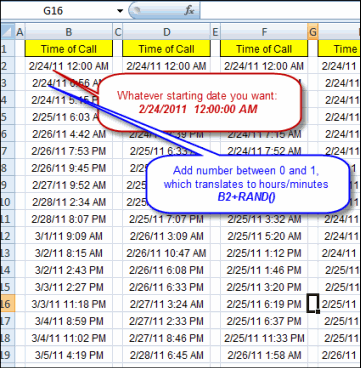
Generating Random Times for EventsIf you are ever in the need for sample data where the events (sales, support calls, etc.) occur several times throughout any given day, here is a neat little trick to accomplish that. One might think the RANDBETWEEN function, which generates a random integer between two numbers that you feed the function, would do the trick. Well, because RANDBETWEEN only returns whole numbers, the time of the day is always going to be at midnight.

To add increments that are less than one day, you would need to add numbers less than one (i.e. not whole numbers). For example adding 0.25 would take the time to 6 am; 0.5 to noon, and 0.75 6 pm. Luckily, adding a number less than one is easy. The RAND function, which generates a number between 0 and 1, does all of the work you.

To generate a list of random times, then, simply start with whatever date you wish in the first row of your data. All is needed in each cell afterward is the addition of Rand(). After adding Rand() to the previous cell, simply copy (or drag) the formula for as many entries as you wish. See attached for example. If, when you’ve finished the copying/dragging, you don’t see enough entries in each day (only 6 am, 2 pm, and 11:30 pm— 3 entries—for example), simply divide Rand() by 2 (or 3 or 4 or 5), to make the increment each time smaller. Pretty straightforward, huh?

Example: Generating Random Times and Dates

Random Alpha Numeric Number

Here’s a great function you can use to generate a random alphanumeric number of any length you wish.  You simply open the VBA Editor (Alt-F11), copy and paste this function, then use it [GetRandomNumber(x), where x is the length of the random number you want] as you would any other Excel function.

Generate Random Number