Grouping Dates with Pivot Tables

I am not a gambling man. But if I were, I’d bet a million dollars that you will never ever grasp all that Microsoft Excel has to offer.  Fine with me because that means we can learn something new just about every day.  Pivot Tables provide a perfect example.
Pivot Table Basics

I’v raved about Pivot Tables in the past , praising the power and flexibility of this Excel feature.  In literally seconds, you can slice and dice data any way you wish to see just the data you need to make informed decisions.  (See prior post on Pivot Tables)

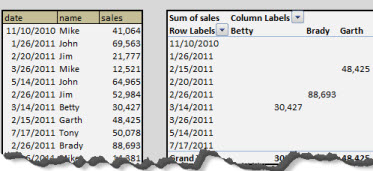
The journey between just learning about Pivot Tables and being able to effectively implement and use them is indeed a short one.  But take just a few more steps and you’ll find additional ways to save time, while adding helpful details to your information and analysis.  Let’s say, for example your company keeps records for each sales transaction.  A simplified table might include the name of the salesperson along with the date and amount of the transaction.

Using just the basic elements of Pivot Tables, one can easily produce a table showing the total sales for each date and each salesperson. (See Illustration).  But having data laid out in this manner is not completely helpful.  A better way to group the information might be by year, quarter, or month.  Or all three.  There are, of course, many ways to add those levels of grouping when producing this pivot table.  Those new to Pivot Tables might add columns to the raw data, converting the date to columns for the month (using the month() function), year (using the year() function), and quarter (applying the roundup() function to a simple equation: monthNumber/3- see :What Quarter is It?).  Even adding one for the week wouldn’t be that difficult. Read more of this post
Data Tables

Performing what-if analysis in business is very common, crucial even. What if a new project is delayed by 3 months? Or what if the company is unable to secure financing at the projected cost of capital? Successfully answering questions like these often means the difference between a business finally turning the corner and becoming profitable and, well, it not. But this type of analysis is also helpful for individuals. Far from overly complicated but seldom used by consumers, tools that allow for thoughtful consideration of important personal finance decisions should be used much more often then they are. They can help one understand how much more a car will cost over time or what term and interest rate combination is required to make sure the monthly payment fits into the family budget. They can even reveal how your credit scoreis helping or hurting you.

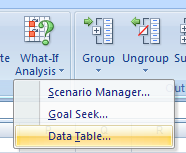
Data Tables, one of the features in Excel's What-If-Analysis Package, is a very useful tool for comparing.

So let’s dig in. How would you perform this type of analysis? What tools would you use? Microsoft Excel, of course! Until recently, I’d approach this—or any other 2 dimensional, two variable scenario– by building a grid in Excel with all of the intersection values. For example, I might look at an auto loan with six possible interest rates, 5% to 10%, and five different possible terms, ranging from one to five years. To fill out the grid, I’d utilize the power within absolute and relative references to allow easy copy and filling across all rows and columns of the grid. Read more of this post

Time Value of Money

Wikipedia describes it as “the value of money figuring in a given amount of interest earned over a given amount of time.  To investopedia, it is “the idea that money available at the present time is worth more than the same amount in the future due to its potential earning capacity.”  And to lottery winners who discover they can only get roughly half of what they won if they want the money up front, it’s a bunch of crap! But make no mistake about it; the time value of money concept is one the most fundamental in all of finance- personal, corporate, or investment.  It serves as the basis for everything from compounding interest to the valuation of firms and is critical to understanding, and ultimately making, any long-term investment decision.  But far from overly complicated, it is too often misunderstood or, at least, taken for granted.  If you don’t believe me, ask your friends how many of them stash away $20 or $30 each month knowing the power harnessed inside this simple concept.  Or ask yourself why in the world you loaned your friend $50 with the expectation of receiving exactly $50 at a later, perhaps much later, date. Or, going back to our earlier example, sit down with one of so many lottery winners who are angry when they learn that they’re really not millionaires.  Not right away, at least. Read more of this post

Nifty way to troubleshoot formulas

If you’re an experienced Excel use, it’s a sure bet that you’ve found yourself on more than one occasion with long, unwieldy formulas.  While these long, often nested, functions are a necessity when building complex spreadsheets, they can be a huge headache.  Luckily, Microsoft has created a way to help.

While editing a formula, using the F9 key will reveal the result of any selected portion.  Doing this allows you to troubleshoot and debug any formulas that don’t seem to be working correctly.

Let’s say, for example, that you are in charge of a fundraiser at your child’s school. Read more of this post

Dashboard Tip: In-Cell Charting

Your business day is busy and information-packed.  Dashboards are an effective way to make sense of everything without driving yourself crazy.  A well-designed dashboard can save you hours of work and make you look good in front of your boss.

Of course most dashboards include graphs, charts, and even the occasional pivot table.  But a quick, simple, and very flexible alternative involves the use of the REPT function, which repeats any character you designate any number of times that you wish. Read more of this post