Dirty Data

In the business world, we get data in all kinds of formats and ways.  Often times this data is what I call dirty and in need of cleaning.  The most common culprits can be easily fixed.  Below are some of them and my most oft-used remedies.

Weird space at the end (or beginning) of text in field
Sometimes I download data, copy and paste it from another source, or get it directly from a database.  And, for some reason,  there are fields or cells with spaces at the end.  My experience tells me that this is usually one of two things.  Either somehow (often data entry error) a person typed a space at the end or beginning on accident.  Or non printable characters (such as carriage returns or the tab key) have been appended.  The latter often happens when converting a tab delimited file. Read more of this post
If, Then Statements

If there is a function in Excel that I use more than if(), it would take me a long, long time to figure out what that was.  I have been using this conditional statement for as long as I can remember and it is extremely helpful and applicable across a broad range of situations.

The general usage:

If([Condition to Check],[What to do if the condition is true],[What to do if the condition is false]) Read more of this post

Custom Number Format

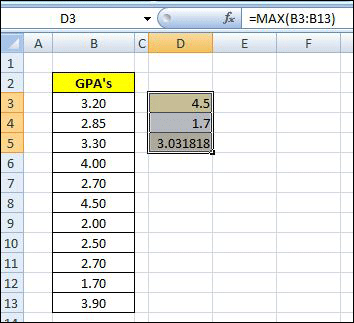
Figure 1: Write Functions max, min, and average

Do you ever want to include additional information inside of a cell that contains or calculates a number?  Here’s how.  Let’s pretend you have a classroom of students.  You have a list of their Semester Grade Point Averages and want to quickly summarize the class, looking at the highest, lowest, and average.

To accomplish it, you write the formulas to calculate the three figures.  The three functions you’ll use are:
max (), min (), and average () [See Figure 1: Write Functions: max, min, and average]

The next step is to reformat the cell, changing the default or current setting.  Right click on the cell, and select “Format Cells” toward the bottom of the drop-down window.  Once selected, the first tab of the format window, “Number”, will appear.  Choose the “Custom” Category at the bottom.

You’ll then see (to the right) a “Sample” section which shows the result of any custom function you write based on the selected cell’s current contents.  There are several predefined choices, but we’ll write our own.  We can, however, look at this list to get an idea of the different number and date characters (#,$,mm,yyyy) allowed. Read more of this post

Trend and Growth Functions

Data can be analyzed in a lot of different ways.  Excel has dozens of tools and functions that make high-level statistical analysis not only possible, but in many cases fairly easy to use.

Researchers of all types (medicine, anthropology, sociology, entomology are a few of several fields) use statistics extensively.  Larger corporate companies also spend resources on analyzing, reporting, and making business decisions based on statistical analysis.

Read more of this post

Your Algebra Teacher Was Right :(

Who knew that grumpy lady was right?  The one you used to make fun of.  The one you drew less than complimentary pictures of.  When your Algebra teach would say “You’re going to need this stuff later in life” you’d mumble to your buddy in the seat next to you “Get over yourself.”  Well, time to eat some crow, my friend.  Because she was right.

Case in point: Sales Tax Calculation when “Tax is Included”

It’s always convenient to sell products in round, easy to hand-over, currency denominations, right?  Of course.  Asking a customer to fork over a five, ten, or twenty dollar bill makes life a lot easier for everyone.  But how do you calculate the sales tax when “it’s included?”

After thinking through it for a minute, I figured it out.  I was impressed that I’d actually remembered.  And I was humbled by the fact that Miss Jacobson actually taught me something when I gave her nothing but flack.  Working through the problem on my white board helped:

Known variables: Total of Sale (example $20); Tax Rate (example 9.25%)
Unknown variable (x): Product or Service Price before Tax

Equation and Work:
Step 1: x + .0925x = $20
Step 2: x (1 + .0925) = $20
Step 3: x = $20/(1 + .0925)
Step 4: x = $20/1.0925 = $18.31
Step 5: Tax = $18.31 * .0925 = $1.69

So it looks like she was right after all.  I am going to need some of what I learned in school.