Pivot Tables.. but first

I’ve been asked by many of you to put together something on Pivot Tables.  In doing so, I found the hardest part was compiling sample data that allowed me to highlight some of the cool features that Pivot Tables have to offer. After searching the web for sample data to use and coming up empty, I decided to go the long route and just start typing.  But as luck would have it, I stumbled upon a slick way or two to generate some useful data.  Attached is that discovery in two parts.  This is my first attempt at a video blog, so please provide any feedback, good or bad.
Part I


Part II
Slicing Data based on Multiple Criteria with SumProduct()

Excel’s SUMIF() Formula is a great tool.  It allows you to sum a column based on specific criteria (from another column).  But what if you want information filtered based on two (or more) criteria?

Enter SUMPRODUCT(). Read more of this post

Dirty Data

In the business world, we get data in all kinds of formats and ways.  Often times this data is what I call dirty and in need of cleaning.  The most common culprits can be easily fixed.  Below are some of them and my most oft-used remedies.

Weird space at the end (or beginning) of text in field
Sometimes I download data, copy and paste it from another source, or get it directly from a database.  And, for some reason,  there are fields or cells with spaces at the end.  My experience tells me that this is usually one of two things.  Either somehow (often data entry error) a person typed a space at the end or beginning on accident.  Or non printable characters (such as carriage returns or the tab key) have been appended.  The latter often happens when converting a tab delimited file. Read more of this post

If, Then Statements

If there is a function in Excel that I use more than if(), it would take me a long, long time to figure out what that was.  I have been using this conditional statement for as long as I can remember and it is extremely helpful and applicable across a broad range of situations.

The general usage:

If([Condition to Check],[What to do if the condition is true],[What to do if the condition is false]) Read more of this post

Custom Number Format

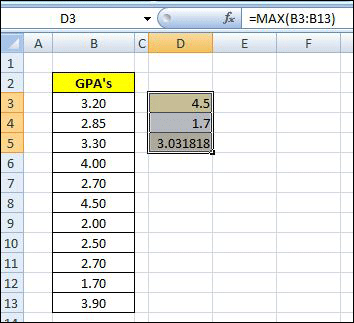
Figure 1: Write Functions max, min, and average

Do you ever want to include additional information inside of a cell that contains or calculates a number?  Here’s how.  Let’s pretend you have a classroom of students.  You have a list of their Semester Grade Point Averages and want to quickly summarize the class, looking at the highest, lowest, and average.

To accomplish it, you write the formulas to calculate the three figures.  The three functions you’ll use are:
max (), min (), and average () [See Figure 1: Write Functions: max, min, and average]

The next step is to reformat the cell, changing the default or current setting.  Right click on the cell, and select “Format Cells” toward the bottom of the drop-down window.  Once selected, the first tab of the format window, “Number”, will appear.  Choose the “Custom” Category at the bottom.

You’ll then see (to the right) a “Sample” section which shows the result of any custom function you write based on the selected cell’s current contents.  There are several predefined choices, but we’ll write our own.  We can, however, look at this list to get an idea of the different number and date characters (#,$,mm,yyyy) allowed. Read more of this post