Ab Upgrades

Never one to shy away from a new (and hopefully) crazy exercise to add to my toolbox, I am excited to try some of the new abdominal exercises in this morning’s serving of Men’s Health Lists.  People who know me know that I live by one mantra when I work out: To be what others can’t be, you have to be willing to do what others won’t do.  I think some of these exercises fit the bill.

http://www.menshealth.com/mhlists/ab-exercise-upgrades/index.php?cm_mmc=BONL-_-2011_Jan_05-_-HTML-_-image

Working with the range YOU want

As business leaders, we are always looking at and analyzing data.  Some of the most common activities involve looking at a range of data or values and calculating the total or average.  Examples might include wanting to know the total sales for a specific store in 2009.  Or the average sales in the last quarter.  Or perhaps we want to know the best selling day (or the worst, for that matter) for a specific store, within a specific date range.

To answer questions like this, most of us use Microsoft Excel to create a fixed table.  We then add a fixed formula into a cell to calculate one of the pieces of information (average or max value, for example) we are looking for.  The problem with this approach is that you often want to change the range you are looking at.  When I’m looking at data, for example, and trying to identify trends and make realistic forecasts, I often find it a better predictor to look at the most recent months versus, say, the last twelve.  You’ll hear me say this time and time again- that I like to take the approach of making things quick and simpler in the long run.  This often takes more time initially, in the short run- to think about, to set up, to develop the appropriate “tool”.

In addressing a situation like this, I’d take the approach of developing a tool that allowed as much flexibility as possible.

If you look at the attached spreadsheet (Excel 2007 or Earlier Versions), you’ll see a lot of stuff going on.  Please do not be alarmed.  It’s really not that difficult.  Below, I’ve provided a few notes, in case you have trouble navigating.  Also, feel free to comment if you have questions. Read more of this post

Good News for Coffee Lovers!

I overheard two gentlemen talking this morning.  One was giving the other a hard time about all the coffee he drinks.  The recipient of these jabs quipped that at least it had one benefit.  “It’s good for the liver.”  I found that hard to believe, but like always, decided to look into it.  Ah, the beauty of the Internet: in less than five minutes, I’d confirmed what he’d stated.  According to WebMD, coffee is, in fact, good for the liver.  It also offers benefits in several other areas, including reduced chances for Type 2 Diabetes, Parkinson’s Disease, strokes, and certain cancers. Read more of this post

Save time and space with Array Formulas

Array Formulas represent one of the least used of Microsoft Excel’s many robust features.  I’m not sure if most business people even know about them.  But they should.  And after this you will not be amongst the naive.

While a typical formula works on one cell at a time, array formulas provide a way to work with a range (or array) of data all at once, performing in one step what you would normally do in several.

Here’s a perfect example from a client:
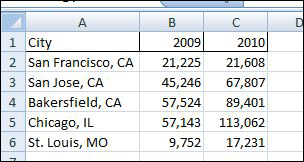
Figure 1: Sales Data for 2009 and 2010

The Company sells custom phone products at kiosks in malls across the United States.  The owner has just closed the books on 2010 and wants to know how sales compared with 2009.  Specifically, she’d like to know the average growth amongst the stores.  She has collected the data shown in Figure 1, comparing 2009 versus 2010 sales data for all of her stores.

To get an average increase across all of the stores, most would do what?  Well, most would probably add another column (D) to calculate the difference (Col. C-Col. B).  Then take the average (using the average formula) of that new column.  Not bad.  But you can do all of that in one formula, an array formula:

=average(C2:C6-B2:B6)

Now, HERE IS THE TRICK:

Array formulas must be entered a little differently than regular formulas, so that Microsoft Excel doesn’t think you’re referring to individual cells.  Instead of just hitting the <Enter> key, you must hold down the <Shift> <Ctrl> keys while hitting the <Enter> key.  When done correctly, you will see fancy brackets around the entire formula:

{=average(C2:C6-B2:B6)}

And the cell will return the same figure you get with the other, longer method.  Possibly as importantly, this method will also speed up the processing of the worksheet, something that can be a problem if your datasets get large or unwieldy.

City 2009 2010
San Francisco, CA 21,225 21,608
San Jose, CA 45,246 67,807
Bakersfield, CA 57,524 89,401
Chicago, IL 57,143 113,062
St. Louis, MO 9,752 17,231

7 Best Stress-Fighting Foods

Great article on Beating Stress through 7 great diet tips:

Men’s Health: 7 Best Stress-Fighting Foods